
If you already sell a product on Amazon and want to offer it in more sizes, colors, or scents, you don't need a brand-new listing - you add a variation to the existing one. Knowing how to add a variation to an existing Amazon listing lets you group those options under a single product page, so shoppers can compare and choose in one place, and your reviews and sales history stay together.
This guide covers what a variation listing is, how to build one from scratch, and, most importantly, how to add a variation to a listing you already have - through Seller Central and through an inventory file. Across the 70,000+ cases our team has handled inside Seller Central, variation setup is one of the most error-prone catalog tasks, so we've also included why Amazon rejects variation requests and how to fix each one.
TL;DR: How to Add a Variation to an Existing Amazon Listing
Here's the short version before the details.
-
Confirm your product category supports a valid variation theme (size, color, and so on).
-
In Seller Central, go to Inventory → Manage All Inventory, find the listing, and select Edit listing.
-
Open the Variations tab, choose your variation theme, and add the new child variations.
-
Or add to the family in bulk from the Add Products page using Amazon's pre-filled variation spreadsheet, or a category flat file.
- Submit and confirm the new variation attaches to the existing detail page, usually within an hour.
What Is an Amazon Variation Listing?
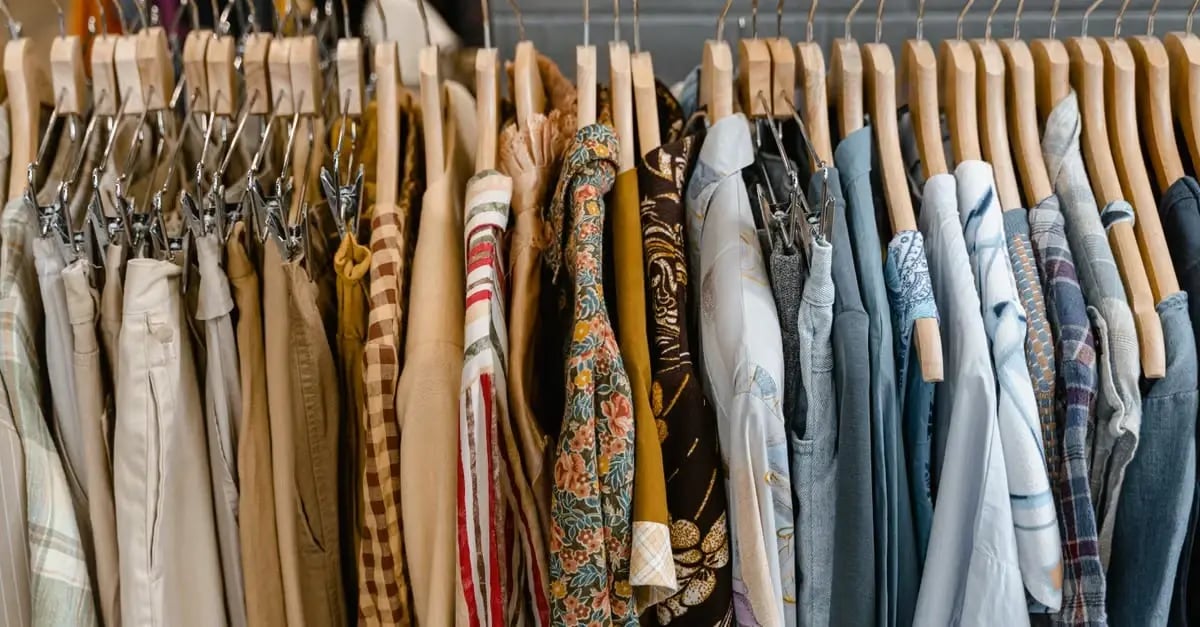
A variation listing groups related versions of a product under one detail page. Think of a T-shirt sold in several sizes and colors: instead of a separate page for each, they all live on one listing where the shopper picks the size and color they want.
That single page is the parent listing, and each specific version is a child listing linked to it. The parent holds the information common to all versions; each child carries the details unique to that option, like size, color, and price.
Elements of an Amazon Variation Listing
Three components make a variation listing work, and it helps to know exactly what each one does before you build or edit a family.
| Component | What it is | Can a customer buy it? |
| Parent ASIN | The non-buyable "shell" listing that holds shared information and ties the family together | No - it's a container, not a purchasable item |
| Child ASIN | A specific version (a size, color, or scent) linked to the parent | Yes - this is what the customer actually adds to the cart |
| Variation Theme | The attribute set that defines how the children differ (Size, Color, SizeColor, and so on) | N/A - it's the rule that structures the family |
One detail worth remembering: each child ASIN is indexed and ranks in search independently, so every variation is its own opportunity to be found.
Benefits of Amazon Variation Listings
Grouping variations isn't just tidier - it directly helps discovery, conversion, and social proof. Here's what a well-built family does for you.
Increase in Conversion Rate
A variation listing lets shoppers compare options and choose without leaving the page. That reduced friction - one page, every choice - tends to convert better than making customers bounce between separate listings to find the right size or color.
Improved Child Listing Discoverability
Lower-performing versions gain visibility when they sit alongside stronger ones. Adding a new variation to an established listing, rather than launching a standalone page, gives it a far better chance of being seen from day one.
Combined Reviews and Sales History
Reviews across all child listings pool on the parent page, so the family shows a combined review count that builds trust. Sales history combines the same way, which supports the listing's organic ranking. The flip side is a real risk: when a family breaks, those reviews can scatter - our breakdown of split reviews and orphaned ASINs shows how that happens and what it costs.
How to List Multiple Variations on Amazon
This section covers building a new variation listing from scratch. If your listing already exists, skip ahead to the next section on adding to an existing one. There are two routes: the manual Seller Central path and an inventory file upload.
Build Variations Manually in Seller Central
Use this for a small, straightforward family you're creating fresh.
-
From the main menu, select Catalog, then Add Products.
-
Create your product and open the Variations tab.
-
Under Variation Theme, select how your products differ (size, color, shape, and so on).
-
Enter each variation you'll sell, then add them to the family.
-
Complete the remaining details for each child - product ID, price, and quantity.
-
Save and finish once every field is correct.
Build Variations With an Inventory File
Use this when you're creating a larger family and want to work in bulk.
-
In Seller Central, choose Catalog, then Add Products via Upload.
-
Enter your product and its category, then generate the category template.
-
In the spreadsheet, use the Example tab as a guide and complete the Template tab for your parent and children.
-
Set the parent and child fields (covered in detail in the flat-file steps below), then upload the completed file.

How to Add a Variation to an Existing Amazon Listing
Here's the part most sellers actually need: how to add a variation to an existing Amazon listing without rebuilding anything. The fastest route is to edit the listing directly - in Seller Central, go to Inventory → Manage All Inventory, find the product, select Edit listing, open the Variations tab, and add the new variation before submitting for review. For larger families, two bulk methods follow.
Add Variations Using the Add Products Workflow (and the Variation Wizard)
Amazon now lets you add to an existing family straight from the Add Products page.
Search for your product in Add Products and download the full variation family information - Amazon pre-fills a spreadsheet with the existing variations and their attributes. You then fill in the required fields for the products you're adding, upload, and you're done. Because the structure arrives pre-populated, this removes most of the errors that come from building a flat file by hand.
The Variation Wizard is the older interactive tool many sellers used for this - reached through Catalog → Add Products → "Create variations using Variation Wizard," with options to add to an existing family or combine standalone listings. Amazon is retiring the Variation Wizard (phase-out expected around the end of August 2026) in favor of the Add Products workflow above, so if the Wizard is still in your account, treat it as the legacy option and move to the new spreadsheet flow.
Add Variations to an Existing Amazon Listing through an Inventory File
A category flat file gives you the most control for bulk changes. Start from the correct category template and check the Valid Values tab for the variation themes your category allows.
For the parent row:
-
Complete the required fields, including a unique SKU. Tip: append "-parent" to the base SKU so the parent is easy to spot.
-
Leave the Parent SKU column blank.
-
Enter "parent" in the Parentage column and a valid value in Variation Theme.
-
Leave Relationship Type blank, along with other non-required fields.
For each child row:
-
Complete all required fields.
-
Enter the parent's SKU in the Parent SKU field (the same value for every child).
-
Enter "child" in Parentage and "variation" in Relationship Type.
-
Set Variation Theme to the same value used on the parent.
Validate the file for errors, then upload it. The new children should attach to the existing detail page shortly after processing.
Why Amazon Rejects Variation Requests
Variation uploads fail for a short list of predictable reasons, and each has a clear fix. Run this table before you resubmit - it's the same triage our team uses when we clean up a broken family.
| Rejection reason | What it means | How to fix |
| Invalid variation theme for the category | The theme you chose isn't allowed for that product type | Use the category template's Valid Values tab and pick a supported theme |
| Child already linked to another parent | The ASIN belongs to a different variation family | Detach it from the old parent first, then relink to the correct one |
| Brand or product-type mismatch | The child's brand or product type doesn't match the parent | Align brand and product type across the whole family |
| Missing Parentage or Relationship Type | Required flat-file fields are blank | Set Parentage (parent/child) and Relationship Type ("variation" on children) |
| "Indicate the item is a variation parent" | The parent isn't flagged as a parent before relationships are set | Make sure the parent row is marked as a parent, not an existing buyable SKU |
| "Variation relationship is incorrect" | Theme, attributes, or product type don't line up across the family | Open parent and child side by side and confirm they all match |
If a family stays broken after a couple of clean attempts, the safest move is to stop resubmitting and get eyes on the structure - botched variation edits can suppress listings or split reviews. This is exactly the kind of work our Amazon catalog management team handles day to day.
Best Practices for Creating or Adding Variations on Amazon
A clean setup is only half the job - these habits keep a family healthy over time.
Keep It Consistent
Keep branding, formatting, and core details uniform across the parent and every child. Consistency helps Amazon validate the family and helps shoppers trust that they're looking at one coherent product line.
Focus on Quality Images
Give every child clear, high-quality images that show that specific version. Strong visuals lift conversion and reduce the confusion that leads to returns.
Provide Detailed and Accurate Info
Make sure each variation's details - size, color, price, and attributes - are correct and specific to that child. Accurate data prevents mismatches that frustrate buyers and trigger complaints.
Optimize for Search
Work relevant keywords naturally into titles and details so each child can be found, and lean on the fact that child ASINs index independently. Strong optimization on every variation widens your reach, and it's the core of Amazon listing optimization.
Keep Tabs on Your Listings
Check your variation families regularly for suppressed children, broken relationships, or split reviews. Catching a problem early is far cheaper than discovering it after sales have already dipped.

Frequently Asked Questions (FAQs)
If you're new to variations, these are the questions that come up most as you set up your first parent-child family
What Are Parent Child Relationships in Amazon Listing Variations?
When a product has different variations, like sizes or colors, they're grouped under one parent listing that holds the information common to all of them. Each variation, called a child listing, links to that parent, which lets customers see and choose the options from a single page - making it easier to compare and select what they want.
Can Parent Listings Be Deleted?
Yes, but be careful: deleting a parent listing removes its variation relationships, and the child items become individual product pages of their own. Only delete a parent when you actually intend to break the family apart.
How Many Variation Themes Can You Have on an Amazon Listing?
For some categories, such as clothing, Amazon allows two attributes in a single variation (for example, size and color together). Otherwise, you're generally limited to one attribute per listing, depending on the category.
How Do You Add Images to a Variation Listing?
Adding images to each variation helps conversion, and the process is quick:
-
Go to your Seller Central inventory.
-
Click the Edit tab of the parent ASIN you want to add images to.
-
Open the Images section and upload images for the parent and each child variation.
-
Save your changes so the images publish to the detail page.
Get Expert Help with Amazon Variation Listings
Adding a variation comes down to two paths: edit the existing listing in Manage All Inventory for a quick change, or use the Add Products spreadsheet or a category flat file for bulk families. Both are simple in theory and easy to get wrong in practice, where a single mismatched field can suppress a listing or split your reviews.
If your catalog is large or a variation family keeps bouncing back with errors, you don't have to untangle it alone. Our Amazon product listing services team builds and repairs variation families directly inside Seller Central, so your reviews stay combined, and your listings stay live. Book a free consultation and we'll handle the variation setup while you focus on selling.
